Enscape for SketchUp settings directly impact the quality of lighting and materials in real-time rendering. While Enscape is known for its ease of use, default configurations often limit visual realism. Adjusting exposure, shadow quality, reflections, and material properties can significantly improve render output inside SketchUp.
In this guide, we focus on optimizing lighting and material settings in Enscape for SketchUp to achieve professional results while maintaining performance. For designers exploring alternative visualization workflows, AI-based tools like ReRender can also complement or enhance traditional rendering methods. Understanding when to fine-tune Enscape settings and when to consider alternative rendering approaches can help you create more efficient and visually compelling presentations.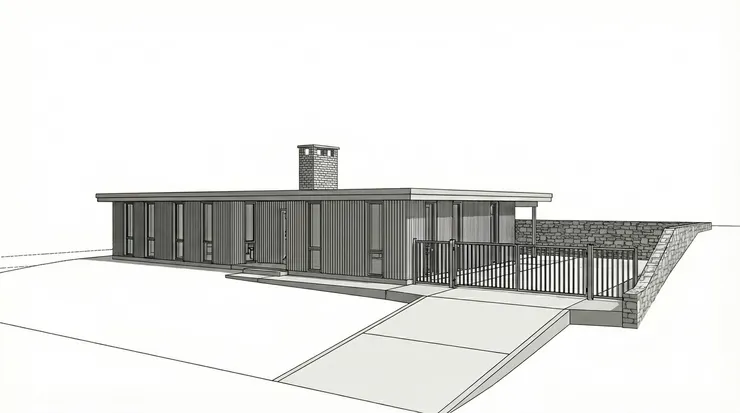
SketchUp base model before adjusting Enscape settings
Best Enscape Visual Settings for SketchUp Rendering
Optimizing Enscape visual settings for SketchUp rendering is essential for achieving realistic real-time results. While default presets allow quick previews, adjusting rendering quality, exposure, shadow detail, and reflection accuracy can significantly enhance image clarity and lighting balance. Higher rendering quality improves global illumination and material response, but it also requires stronger GPU performance. For final exports, selecting High or Ultra quality ensures sharper reflections and more accurate light interaction.
Manual exposure control is equally important, especially for interior scenes where natural light and artificial lighting must remain balanced. Fine-tuning shadow softness and reflection refinement adds depth and realism to materials such as glass, metal, and polished surfaces. By carefully managing these Enscape settings, SketchUp models can transition from basic previews to professional-grade real-time renderings.
Optimizing Lighting Settings in Enscape for SketchUp
Proper lighting settings in Enscape for SketchUp are essential for achieving realistic architectural renders. Lighting directly affects shadow depth, material appearance, and overall atmosphere. Start by adjusting sun brightness and time of day to control natural light direction and contrast. For interior scenes, balancing artificial light intensity with daylight prevents overexposed windows and dark corners. Accurate lighting setup improves visual clarity and makes materials respond more naturally to reflections and highlights.
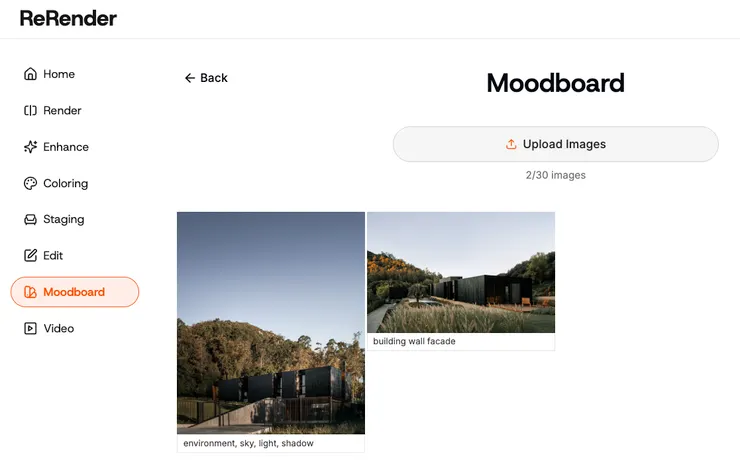
Reference image for realistic lighting in Enscape for SketchUp
In Enscape, shadow sharpness and indirect illumination also influence realism. Softer shadows create a more natural environment, while refined light bounce enhances depth in interior spaces. Instead of relying solely on default lighting presets, fine-tuning intensity and color temperature ensures more professional rendering results. Optimized lighting settings help SketchUp models appear brighter, more dimensional, and visually consistent across different presentation views.
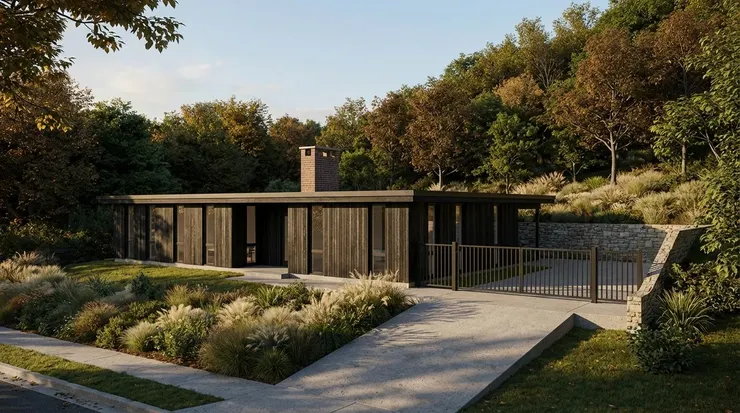
Enscape lighting settings result in SketchUp real-time rendering
Material Settings in Enscape for Realistic Results
Reflection, Roughness, and Texture Optimization
Adjusting material settings in Enscape for SketchUp is essential for achieving realistic surface detail in real-time rendering. Reflection intensity and roughness values determine how light interacts with materials such as glass, metal, wood, and concrete. Lower roughness creates sharper reflections, while higher values produce softer, more natural surfaces. Properly calibrated reflection settings prevent materials from appearing overly glossy or unnaturally flat. In addition, using high-quality texture maps—including bump or normal maps—adds depth and surface variation without increasing model complexity. Transparent materials such as glass require balanced reflection and refraction settings to avoid unrealistic glare. By optimizing material parameters instead of relying on default presets, Enscape renders gain more accurate light response, improved realism, and better consistency across different SketchUp scenes.
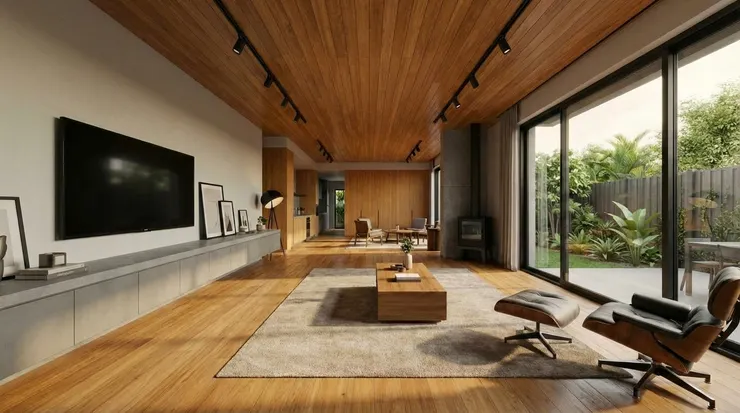
Enscape material settings reflection and roughness example
When to Adjust Enscape Settings or Use AI Rendering Tools
Optimizing Enscape for SketchUp settings is often enough to achieve realistic lighting and material quality, but certain workflows may benefit from AI-assisted rendering tools. When working with tight deadlines, early design concepts, or stylistic variations, AI-based solutions can complement traditional Enscape rendering by enhancing mood, atmosphere, and visual detail without extensive manual adjustments. Instead of replacing Enscape, tools like ReRender can be integrated after base lighting and material settings are configured in SketchUp, allowing designers to maintain geometric accuracy while exploring alternative visual styles. Understanding when to fine-tune Enscape settings and when to leverage AI rendering tools creates a more flexible, efficient, and presentation-ready visualization workflow.
FAQ About Enscape for SketchUp Settings
1. What are the best Enscape settings for SketchUp rendering?
The best Enscape settings for SketchUp depend on project scale and hardware performance. For final renders, use High or Ultra rendering quality, manually adjust exposure, refine shadow sharpness, and optimize reflection settings. Balancing quality and GPU capability ensures realistic lighting and material depth without slowing down workflow performance.
2. How do I improve lighting in Enscape for SketchUp?
To improve lighting in Enscape for SketchUp, adjust sun brightness, time of day, and artificial light intensity. Manual exposure control helps prevent overexposed highlights and dark interiors. Refining shadow softness and indirect illumination also enhances depth and realism in architectural and interior scenes.
3. Why do my materials look flat in Enscape?
Materials often appear flat due to incorrect reflection, roughness, or texture settings. In Enscape, adding bump or normal maps improves surface detail, while balanced reflection values create realistic light interaction. Avoid overly glossy settings unless working with polished materials like glass or metal.
4. Can AI tools like ReRender replace Enscape for SketchUp?
AI tools like ReRender do not fully replace Enscape for SketchUp, but they can complement it. Enscape provides accurate real-time rendering based on geometry and lighting, while AI rendering tools enhance atmosphere, mood, or stylistic effects. Many designers combine both for faster and more flexible visualization workflows.
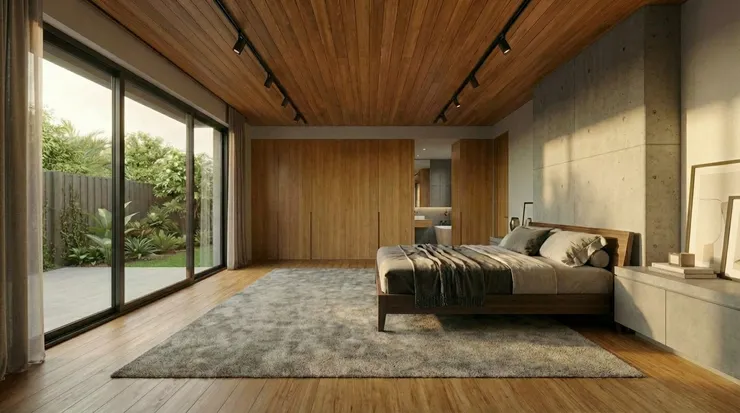
Final Enscape for SketchUp rendering result with optimized lighting and materials
Conclusion
Optimizing Enscape for SketchUp settings is essential for achieving realistic lighting and material quality in real-time rendering. By refining visual settings, balancing lighting intensity, and adjusting reflection and texture parameters, designers can significantly improve rendering clarity and depth. Proper configuration not only enhances realism but also maintains smooth performance within SketchUp workflows. For projects that require faster concept exploration or stylistic variation, integrating AI rendering tools alongside Enscape can further expand creative flexibility. Mastering these lighting and material settings ensures that SketchUp models consistently deliver professional, presentation-ready results.
Enscape for SketchUp: https://rerenderai.com/