或許有人會說,windows搜尋就已經支援這個功能了,但是我試用了一下,好像沒有很好用,我寫的這篇就是針對Excel的檔案做關鍵字的搜尋,並會在最後列出包含該關鍵字的檔案資訊。
之所以做這個東西,主要是在追朔我的工作日誌的時候,常常要一直去翻找我們過去的execel檔案,其實很浪費時間,用了這個小工具,只要關鍵字能夠記得,就可以找到過去何時所做的這個紀錄。

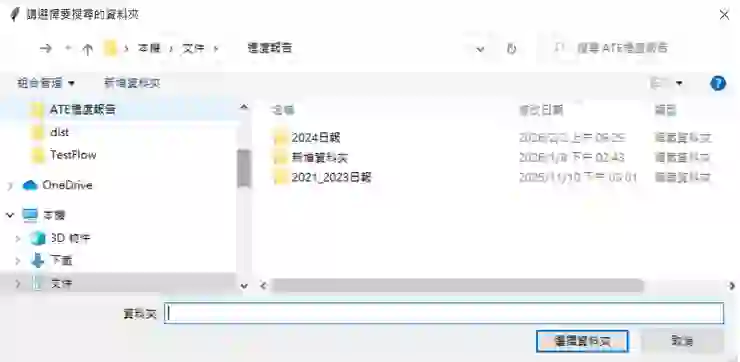
- 執行該程式後選擇我的資料夾,該Python檔案支援子目錄搜尋因此在以下範例中,將會搜尋所該資料夾內的所有資料夾的excel檔案。
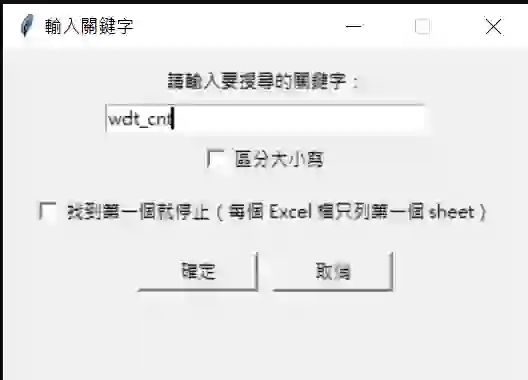
- 輸入關鍵字,根據我們的條件來設定搜尋字串與其他考量的細節。
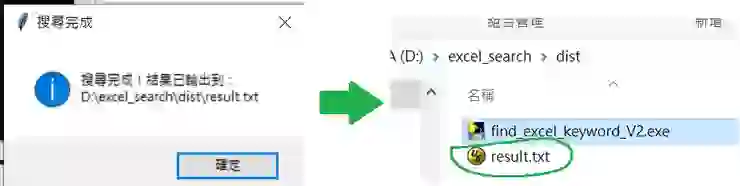
- 等待搜尋並得到最後的結果,接下來就可以在result.txt中得到我們的相關資訊。
- Python範例程式如下:
import sys
import os
import pandas as pd
import tkinter as tk
from tkinter import filedialog, messagebox

# === 自訂輸入視窗 ===
class KeywordDialog(tk.Toplevel):
    def __init__(self, parent):
        super().__init__(parent)
        self.title("輸入關鍵字")
        self.geometry("350x220")
        self.resizable(False, False)

        tk.Label(self, text="請輸入要搜尋的關鍵字:").pack(pady=(10, 5))
        self.keyword_var = tk.StringVar()
        self.entry = tk.Entry(self, textvariable=self.keyword_var, width=30)
        self.entry.pack()

        self.case_var = tk.BooleanVar(value=False)
        tk.Checkbutton(self, text="區分大小寫", variable=self.case_var).pack(pady=5)

        self.first_only_var = tk.BooleanVar(value=False)
        tk.Checkbutton(self, text="找到第一個就停止(每個 Excel 檔只列第一個 sheet)",
                       variable=self.first_only_var, wraplength=300, justify="left").pack(pady=5)

        btn_frame = tk.Frame(self)
        btn_frame.pack(pady=10)
        tk.Button(btn_frame, text="確定", width=10, command=self.on_ok).pack(side=tk.LEFT, padx=5)
        tk.Button(btn_frame, text="取消", width=10, command=self.on_cancel).pack(side=tk.LEFT, padx=5)

        self.result = None
        self.protocol("WM_DELETE_WINDOW", self.on_cancel)
        self.entry.focus_set()
        self.wait_window(self)

    def on_ok(self):
        keyword = self.keyword_var.get().strip()
        case_sensitive = self.case_var.get()
        first_only = self.first_only_var.get()
        if keyword:
            self.result = (keyword, case_sensitive, first_only)
        self.destroy()

    def on_cancel(self):
        self.result = None
        self.destroy()

# === 主程式 ===
root = tk.Tk()
root.withdraw()

# 選擇資料夾
folder_path = filedialog.askdirectory(title="請選擇要搜尋的資料夾")
if not folder_path:
    messagebox.showinfo("提示", "未選擇資料夾,程式結束。")
    exit()
# 輸入關鍵字 + 區分大小寫 + 只列第一個選項
dialog = KeywordDialog(root)
if not dialog.result:
    messagebox.showinfo("提示", "未輸入關鍵字,程式結束。")
    exit()

keyword, case_sensitive, first_only = dialog.result

# 結果輸出到 py 同目錄
#output_file = os.path.join(os.path.dirname(__file__), "result.txt")
# exe 路徑判斷
if getattr(sys, 'frozen', False):
    # 如果是打包後 exe
    base_path = os.path.dirname(sys.executable)
else:
    # 如果是直接用 py
    base_path = os.path.dirname(__file__)

output_file = os.path.join(base_path, "result.txt")
found_records = []

# 搜尋 Excel
# 搜尋 Excel(包含所有子資料夾)
for root_dir, _, files in os.walk(folder_path):
    for file_name in files:
        if file_name.lower().endswith((".xlsx", ".xls")):
            file_path = os.path.join(root_dir, file_name)
            try:
                xls = pd.ExcelFile(file_path)
                for sheet_name in xls.sheet_names:
                    df = pd.read_excel(
                        file_path,
                        sheet_name=sheet_name,
                        header=None,
                        dtype=str
                    )

                    if not case_sensitive:
                        mask = df.apply(
                            lambda col: col.str.contains(keyword, case=False, na=False)
                        )
                    else:
                        mask = df.apply(
                            lambda col: col.str.contains(keyword, case=True, na=False)
                        )

                    positions = [
                        (r + 1, c + 1)
                        for r, c in zip(*mask.to_numpy().nonzero())
                    ]

                    if positions:
                        pos_str = ", ".join(
                            [f"(列{r},欄{c})" for r, c in positions]
                        )
                        found_records.append(
                            f"{file_path} -> {sheet_name} : {pos_str}"
                        )

                        if first_only:
                            break
            except Exception as e:
                print(f"讀取失敗: {file_path}, 原因: {e}")

# 輸出結果
with open(output_file, "w", encoding="utf-8") as f:
    f.write(f"搜尋關鍵字:{keyword} (區分大小寫:{case_sensitive}, 只列第一個 sheet:{first_only})\n\n")
    if found_records:
        f.write("找到以下檔案與工作表包含關鍵字:\n")
        f.write("\n".join(found_records))
    else:
        f.write("未找到包含指定關鍵字的檔案。")

messagebox.showinfo("搜尋完成", f"搜尋完成!結果已輸出到:\n{output_file}") - 或到此下載.py檔案:
https://drive.google.com/file/d/1bClOQf95g9xRWeEXd0GVuIzpmTMzY4ga/view?usp=drivesdk